Investigating Windows - TryHackMe
A practical Windows forensics walkthrough covering event logs, registry persistence, scheduled tasks, credential theft, suspicious network activity, and incident investigation.

📝 Overview
Investigating Windows is a beginner-friendly TryHackMe room focused on Windows forensics and Digital Forensics and Incident Response (DFIR). The challenge involves examining a potentially compromised Windows Server to identify suspicious accounts, persistence mechanisms, credential-access tools, and network artifacts.
In this walkthrough, I investigate Windows using Event Viewer, PowerShell, Command Prompt, Registry Editor, Task Scheduler, and Windows Firewall. Each question includes the answer, alternative investigation methods, and a brief explanation of why the evidence matters during an incident investigation.
1. What’s the version and year of the Windows machine?
Answer: Windows Server 2016
The first step in an investigation is identifying the operating system. This establishes the system baseline and helps determine which Windows features, logs, and forensic artifacts are available.
Method 1 — Command Prompt
systeminfo
Method 2 — PowerShell
Get-ComputerInfo -Property "Os*"
Method 3 — GUI: Open Settings → System → About, or run winver.
Reason: Knowing the OS version helps investigators interpret logs and system behavior correctly.

2. Which user logged in last?
Answer: Administrator
Successful logon records can help identify the last account that accessed the machine. Historical events are more useful for this question than checking only currently active sessions.
Method 1 — Event Viewer
- Run
eventvwr.msc. - Navigate to Windows Logs → Security.
- Select Filter Current Log.
- Enter Event ID
4624. - Examine the newest relevant event and its account name.
Method 2 — PowerShell
Get-LocalUser | Select-Object Name, LastLogon
To inspect recent successful logons:
Get-WinEvent -FilterHashtable @{
    LogName = 'Security'
    Id = 4624
} -MaxEvents 10 |
    Select-Object TimeCreated, Message
Method 3 — Registry
Inspect the LastLoggedOnUser value under:
HKEY_LOCAL_MACHINE\SOFTWARE\Microsoft\Windows\CurrentVersion\Authentication\LogonUI
Method 4 — Command Prompt
quser
Reason: Event ID 4624 records successful logons. Registry information and quser can provide additional context, but they do not independently establish the last historical logon.
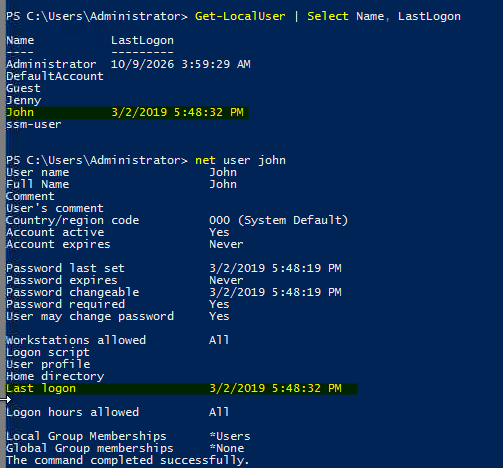
3. When did John log onto the system last?
Answer: 03/02/2019 5:48:32 PM
The last-logon information helps establish when a particular account was used and whether its activity fits the incident timeline.
Method 1 — Command Prompt
net user John
Check the Last logon field.
Method 2 — PowerShell
Get-LocalUser -Name John |
    Select-Object Name, LastLogon
Method 3 — Event Viewer
Open Windows Logs → Security, filter for Event ID 4624, and inspect the account name and timestamp associated with John.
Reason: Comparing account activity with suspicious events can help identify potentially unauthorized access. Confirm the date format and time zone when correlating timestamps.
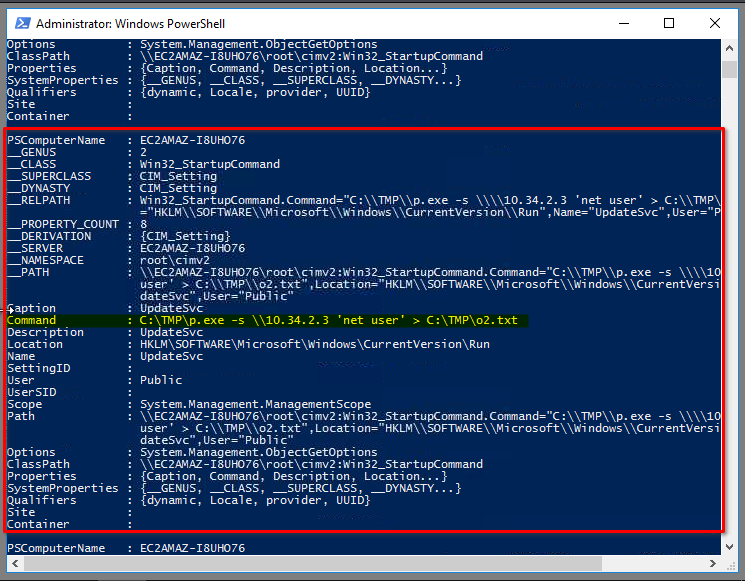
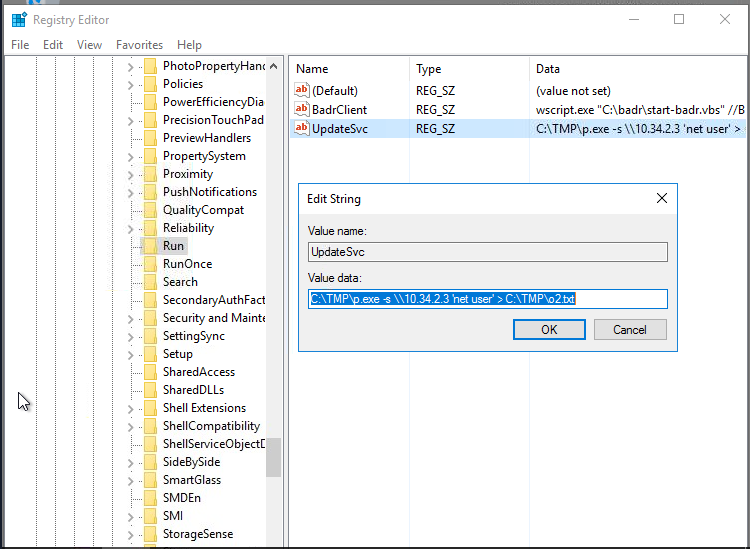
4. What IP does the system connect to when it first starts?
Answer: 10.34.2.3
Startup programs can be configured through Windows Registry keys. An unexpected executable that contacts a remote address deserves further investigation.
Method 1 — Registry Editor
- Run
regedit. - Navigate to:
HKEY_LOCAL_MACHINE\SOFTWARE\Microsoft\Windows\CurrentVersion\Run
- Inspect the
UpdateSvcvalue.
The suspicious command references:
C:\TMP\p.exe -s \\10.34.2.3 'net user' > C:\TMP\o2.txt
Method 2 — PowerShell
Get-ItemProperty `
    "HKLM:\SOFTWARE\Microsoft\Windows\CurrentVersion\Run"
Alternative startup enumeration:
Get-CimInstance -ClassName Win32_StartupCommand |
    Select-Object *
Method 3 — Command Prompt
reg query "HKLM\SOFTWARE\Microsoft\Windows\CurrentVersion\Run"
Reason: The Run key launches programs during startup. The remote address, suspicious executable, and redirected command output are indicators worth investigating for persistence and unauthorized data collection.
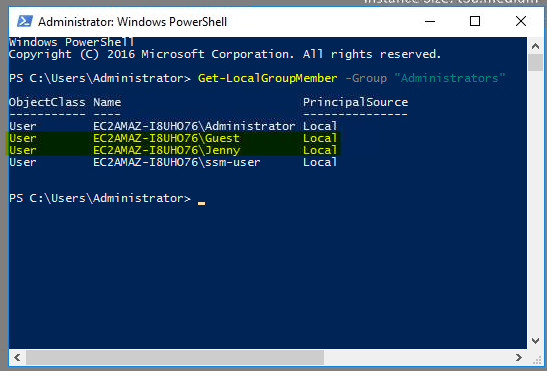
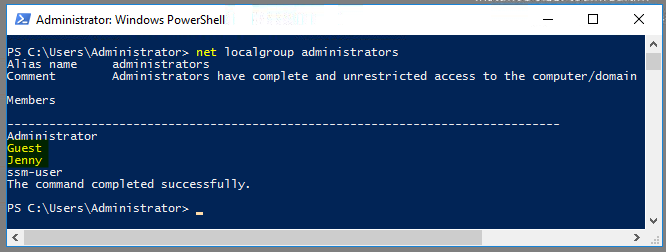
5. What two accounts had administrative privileges other than Administrator?
Answer: Guest, Jenny
Local group membership determines which users have administrative privileges. Unexpected members may indicate privilege abuse or account manipulation.
Method 1 — PowerShell
Get-LocalGroupMember -Group "Administrators"
Method 2 — Command Prompt
net localgroup Administrators
Method 3 — GUI
Open Computer Management → Local Users and Groups → Groups → Administrators.
Reason: Identifying unexpected administrators helps investigators determine which accounts could make privileged system changes.
6. What’s the name of the scheduled task that is malicious?
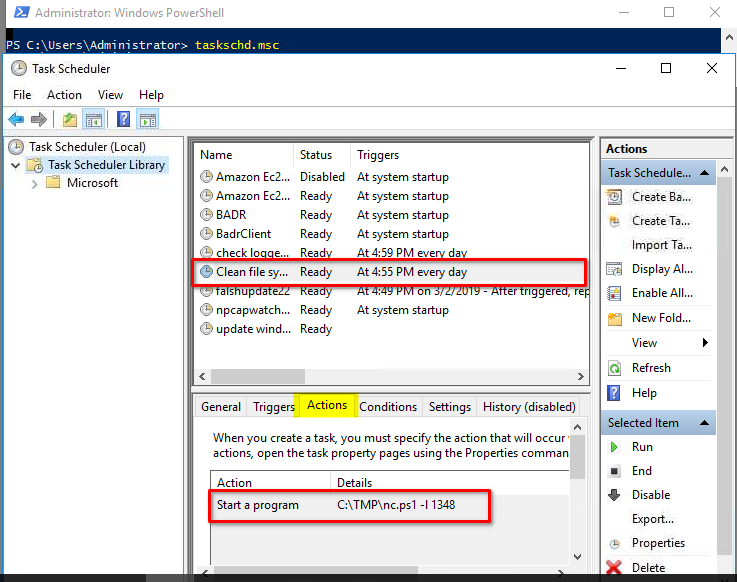
Answer: Clean file system
Scheduled tasks can execute programs automatically at specified times or system events. A legitimate-looking task name does not guarantee that its actions are safe.
Method 1 — Task Scheduler
- Run
taskschd.msc. - Open Task Scheduler Library.
- Locate
Clean file system. - Inspect its triggers, actions, executable path, and schedule.
Method 2 — PowerShell
Get-ScheduledTask |
    Select-Object TaskName, TaskPath, State
Inspect the task’s action:
(Get-ScheduledTask -TaskName "Clean file system").Actions |
    Format-List *
Method 3 — Command Prompt
schtasks /query /fo LIST /v
Reason: Reviewing the task’s configured action reveals what it executes and whether it provides a persistence mechanism.
7. What file was the task trying to run daily?
Answer: nc.ps1
The scheduled task’s action references the following script:
C:\TMP\nc.ps1 -l 1348
Method 1 — Task Scheduler
Open the task’s Properties → Actions and inspect the program and arguments.
Method 2 — PowerShell
(Get-ScheduledTask -TaskName "Clean file system").Actions |
    Format-List *
Method 3 — Command Prompt
schtasks /query /tn "Clean file system" /fo LIST /v
Reason: The .ps1 extension identifies a PowerShell script. The -l 1348 argument suggests that the script is configured to listen on port 1348, which warrants investigation.
8. What port did this file listen locally for?
Answer: 1348
The port can be identified from the scheduled task’s configured arguments. If the script is running, current network connections can provide additional evidence.
Method 1 — Inspect the task action
Check the arguments associated with nc.ps1 in Task Scheduler.
Method 2 — PowerShell
Get-NetTCPConnection -State Listen |
    Select-Object LocalAddress, LocalPort, OwningProcess
Method 3 — Command Prompt
netstat -ano | findstr LISTENING
Reason: A listening port indicates that a service or process is waiting for incoming connections. Current network output does not necessarily prove which ports were open in the past.
9. When did Jenny last logon?
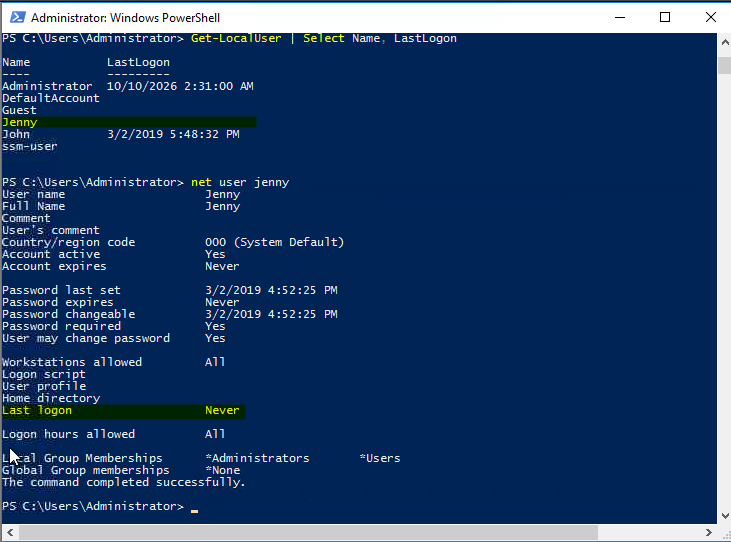
Answer: Never
The investigation identifies Jenny as an administrator but reports no recorded last-logon time. This discrepancy makes the account worth examining.
Method 1 — Command Prompt
net user Jenny
Method 2 — PowerShell
Get-LocalUser -Name Jenny |
    Select-Object Name, LastLogon
Reason: Comparing account activity with group membership and other events can help determine whether an account was created or modified for suspicious purposes. A missing logon timestamp alone does not prove malicious activity.
10. At what date did the compromise take place?
Answer: 03/02/2019
Determining when a compromise occurred requires correlating multiple artifacts rather than relying on a single timestamp.
Method 1 — Inspect file timestamps
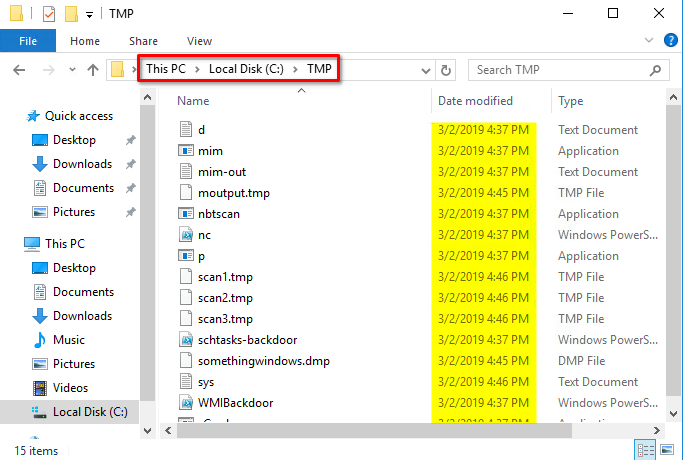
Examine suspicious files under C:\TMP and compare their timestamps.
Method 2 — Event Viewer
Review Windows Logs → Security and investigate relevant events, including:
4624— Successful logon4672— Special privileges assigned to a new logon4720— User account created4732— Member added to a security-enabled local group
Method 3 — Registry and persistence artifacts
Inspect suspicious startup entries and correlate their associated files and execution history with the event timeline.
Reason: Correlating account, logon, and persistence evidence helps establish the likely compromise date. File timestamps alone can be misleading or manipulated.
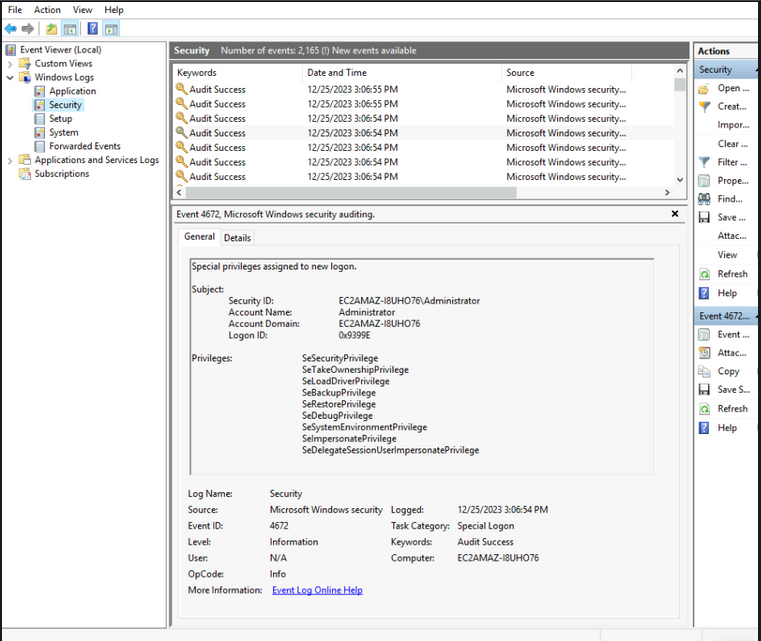
11. During the compromise, at what time did Windows first assign special privileges to a new logon?
Answer: 03/02/2019 4:04:49 PM
Windows records special privilege assignments in its Security log. This event can help investigators identify potentially significant privileged logons.
Method 1 — Event Viewer
- Run
eventvwr.msc. - Navigate to Windows Logs → Security.
- Filter for Event ID
4672. - Examine the relevant event’s timestamp and account details.
Method 2 — PowerShell
Get-WinEvent -FilterHashtable @{
    LogName = 'Security'
    Id = 4672
} | Select-Object TimeCreated, Message
Reason: Event ID 4672 indicates that special privileges were assigned to a new logon. Correlating it with other events helps distinguish routine administration from suspicious activity.
12. What tool was used to get Windows passwords?
Answer: Mimikatz
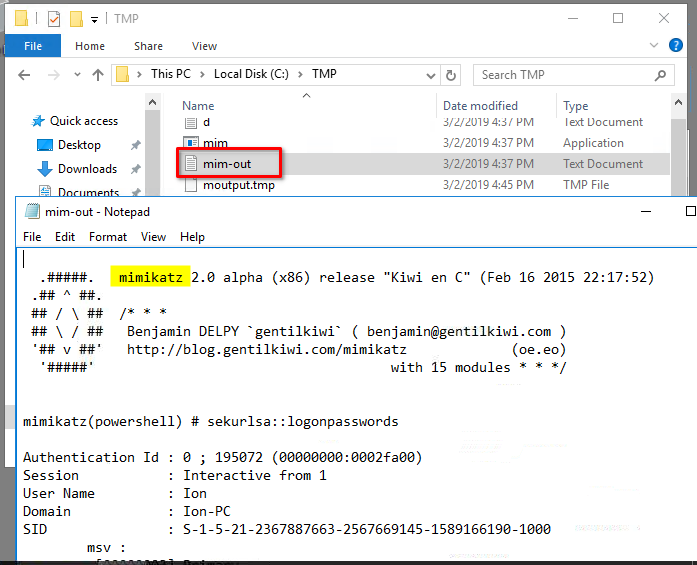
Mimikatz is a credential-access tool commonly associated with attempts to extract Windows authentication material.
Method 1 — Inspect suspicious output files
Examine the reported output file:
C:\TMP\mim-out.txt
Method 2 — Inspect the executable
Check the suspicious executable at:
C:\TMP\mim.exe
Review its metadata and available forensic evidence.
Method 3 — Calculate the file hash
Get-FileHash C:\TMP\mim.exe
Reason: The executable and its output can help identify credential-access activity. A filename alone is not conclusive, so examine the file’s contents, hash, and surrounding evidence.
13. What was the attacker’s external command-and-control server IP?
Answer: 76.32.97.132
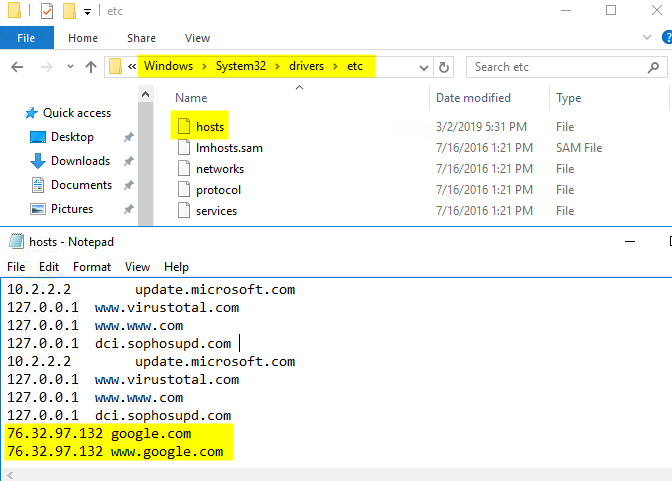
The hosts file can override normal hostname resolution. Unexpected mappings may redirect users or applications to an unintended destination.
Method 1 — Command Prompt
type C:\Windows\System32\drivers\etc\hosts
Method 2 — PowerShell
Get-Content C:\Windows\System32\drivers\etc\hosts
Inspect suspicious entries involving google.com and www.google.com.
Reason: The reported IP is associated with suspicious host-file mappings in this investigation. Treat this as an indicator to verify against other artifacts, not as independent proof of command-and-control traffic.
14. What was the extension name of the shell uploaded via the server’s website?
Answer: .jsp
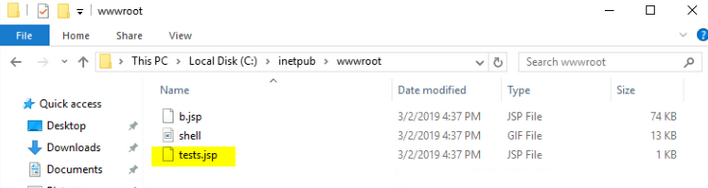
Web-server directories may contain uploaded files that provide unauthorized access to a compromised system.
Method 1 — Inspect the web root
Get-ChildItem C:\inetpub\wwwroot
Method 2 — Search for JSP files
Get-ChildItem C:\inetpub\wwwroot -Filter *.jsp -Recurse
Method 3 — GUI
Open File Explorer and navigate to:
C:\inetpub\wwwroot
Inspect suspicious files and their timestamps.
Reason: The .jsp extension is associated with JavaServer Pages. A suspicious uploaded script may indicate a web shell, although its contents and execution context should be examined before confirming its functionality.
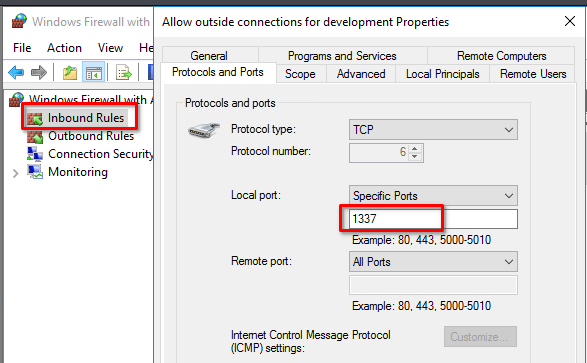
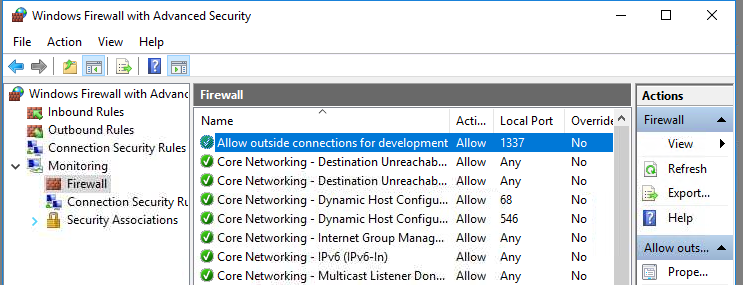
15. What was the last port the attacker opened?
Answer: 1337
Firewall rules can reveal ports that were allowed for inbound connections during the investigation.
Method 1 — Windows Firewall
- Run
wf.msc. - Select Inbound Rules.
- Inspect suspicious rules.
- Open Properties → Protocols and Ports.
Method 2 — PowerShell
Get-NetFirewallRule -Direction Inbound |
    Get-NetFirewallPortFilter |
    Select-Object Protocol, LocalPort
Method 3 — Command Prompt
netsh advfirewall firewall show rule name=all verbose
Reason: An unexpected inbound rule may expose a service to remote connections. The current rule listing does not necessarily establish when a rule was created, so correlate it with available logs and other evidence.
16. Check for DNS poisoning: what site was targeted?
Answer: google.com
The hosts file can redirect a hostname to a specified IP address without relying on the usual DNS lookup.
Method 1 — Command Prompt
type C:\Windows\System32\drivers\etc\hosts
Method 2 — PowerShell
Select-String `
    -Path C:\Windows\System32\drivers\etc\hosts `
    -Pattern "google.com"
Reason: The reported mapping associates Google-related hostnames with an unexpected IP address. This can redirect requests to an unintended destination and is consistent with local hostname manipulation.
Attack-path summary
The following tree organizes the principal artifacts identified during the investigation. It is an investigative summary, not proof that every event occurred in this exact sequence.
Windows Server 2016
|
+-- 1. Suspicious account activity
|   +-- Administrator
|   +-- Jenny: administrative membership
|   +-- Special-privilege logon events
|
+-- 2. Credential access
|   +-- C:\TMP\mim.exe
|   +-- C:\TMP\mim-out.txt
|   +-- Mimikatz
|
+-- 3. Startup persistence
|   +-- Registry Run key
|   +-- UpdateSvc
|   +-- C:\TMP\p.exe
|   +-- Remote address: 10.34.2.3
|
+-- 4. Scheduled execution
|   +-- Clean file system
|   +-- C:\TMP\nc.ps1
|   +-- Listener port: 1348
|
+-- 5. Network manipulation
|   +-- Hosts-file modification
|   +-- google.com -> 76.32.97.132
|   +-- Firewall port: 1337
|
+-- 6. Web-server investigation
    +-- C:\inetpub\wwwroot
    +-- .jsp file
    +-- Investigate for web-shell functionality
Indicators of compromise (IOCs)
| Artifact | Reported value | Investigative significance |
|---|---|---|
| Startup destination | 10.34.2.3 | Remote address referenced by a suspicious startup command |
| Startup executable | C:\TMP\p.exe | Executable referenced by the Run key |
| Suspicious account | Jenny | Administrative membership requiring investigation |
| Scheduled task | Clean file system | Suspicious scheduled execution |
| PowerShell script | nc.ps1 | Script associated with the scheduled task |
| Listener port | 1348 | Port specified in the task arguments |
| Credential tool | Mimikatz | Tool associated with credential access |
| Suspected C2 IP | 76.32.97.132 | IP in suspicious hosts-file mappings |
| Web-server artifact | .jsp | Extension associated with the reported uploaded shell |
| Firewall port | 1337 | Port associated with a reported inbound rule |
| Targeted hostname | google.com | Hostname involved in suspicious mapping |
These are lab-specific indicators. Filenames, IP addresses, and ports should be evaluated in context rather than treated as universally malicious.
Conclusion
This room provided practical experience investigating a Windows host through account enumeration, Security event analysis, registry inspection, scheduled-task investigation, and network artifact analysis.
The main lesson is that effective digital forensics depends on correlating multiple pieces of evidence. A suspicious account, startup entry, scheduled script, or firewall rule may be inconclusive on its own, but together they can help reconstruct an incident and identify the systems and accounts that require further investigation.
Thanks for reading!